An eye break reminder for Mac is useful when you know you should pause but keep working past your intended break. The right choice depends on how you work: whether a small alert is enough, whether you use multiple monitors, and whether calls regularly interrupt your routine.
We build Blink, a native macOS menu bar app for short screen breaks. This guide explains where it fits, which features are free, and when its approach may not suit you. It is a product guide from the developer, not an independent ranking of competing apps.
What should a Mac break reminder do?#
Before comparing feature lists, think about the moment when a reminder would actually help:
| Your situation | What to look for | How Blink handles it |
|---|---|---|
| You lose track of time while working | Automatic recurring breaks | A repeating work-and-break cycle, with optional launch at login |
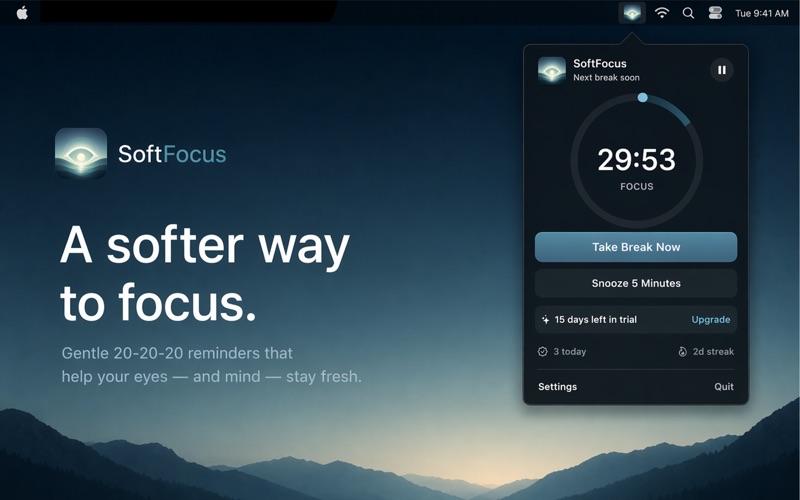
| You want to see when the next break is due | A visible timer | A menu bar panel and optional countdown beside the eye icon |
| You work across two or more displays | A reminder across your setup | A main break card and matching backdrops on other connected displays |
| You often leave your desk | Idle-aware timing | Local idle detection and sleep/lock reset controls |
| Calls or full-screen tasks need uninterrupted time | Manual and automatic pauses | Pause and snooze in the basic app; meeting and full-screen pauses in Pro |
| Your schedule changes throughout the day | Different break routines | Pro schedule profiles based on time and weekdays |
If you only need an occasional cue, a timer you already use may be enough. A dedicated break app becomes more useful when restarting timers, noticing alerts, or handling interruptions is what stops the habit from sticking.
A menu bar app that works across your Mac#
Blink's timer lives outside the browser, so your break routine can continue while you move between a code editor, a document, and a design app. Open the menu bar panel to pause, resume, snooze, or take a break now. Right-clicking the icon also exposes quick actions.
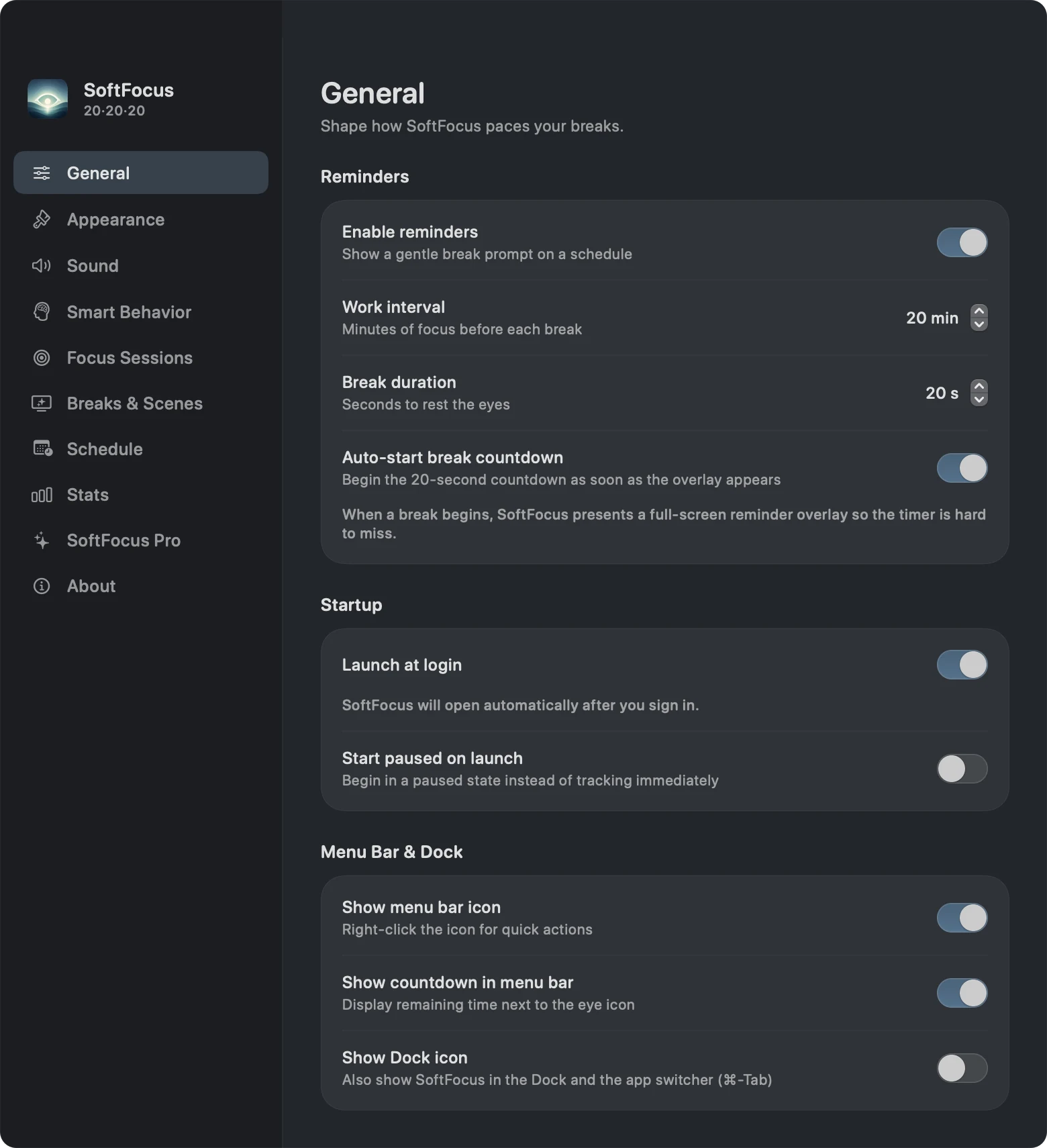
The app can show in the menu bar, the Dock, or both. Appearance settings offer System, Light, and Dark modes, a compact panel, and reduced animations. These controls let you decide how much space the app takes in your working environment.
When the timer reaches a break, Blink uses a full-screen overlay. If you want only a small notification banner, consider that distinction before choosing it. Blink is designed to make the break visible.
How meeting and full-screen pauses work#
In Settings → Smart Behavior, Pro users can enable Pause during meetings and Pause in full-screen apps. The first checks whether a microphone is in use. The second checks the frontmost window's size locally.
Meeting pause is not calendar awareness, and it does not listen to the content of a call. A recording app using the microphone can trigger the same signal. A call that does not keep the microphone active may need a manual pause. This is why accessible pause and snooze controls still matter alongside automatic behavior.
Strict mode is another Pro option: it removes the normal skip and snooze choices from the break prompt. Try the ordinary reminder first so you can decide whether a stricter prompt fits your work.
Free reminders or a one-time Pro upgrade?#
The basic app provides the 20-minute work / 20-second break routine, full-screen breaks, manual controls, idle pause, and local stats. New users get a 15-day Pro trial, after which those core reminders remain available.
Pro adds custom timing, meeting and full-screen pauses, sounds, ambient scenes, guided exercises, focus sessions, schedules, strict mode, adaptive snoozes, and additional accent colors. The upgrade is a one-time purchase without a subscription. The app's purchase screen shows the current local price.
There is no need to buy Pro just to test whether a repeating eye-break cue helps you remember. Use the trial to judge the extras against your actual routine. Our 20-20-20 guide includes a full free-versus-Pro table.
Can Blink also be a focus timer?#
Pro's Focus Sessions let you choose a goal of 2 to 10 blocks. Each block consists of one work interval followed by a break. The menu bar panel shows progress through the session.
This can suit writing, study, or coding sessions where you want a visible stopping point. It also has an important limit: custom breaks range from 5 to 120 seconds. If you need a conventional Pomodoro routine with five-minute short breaks and much longer rest periods, those timings exceed Blink's current break-duration controls.
Use Blink when short eye breaks are the main goal. Its session feature organizes those breaks into a work session; it does not provide every workflow a dedicated task or Pomodoro app might offer.
What stays private?#
Blink does not require a separate account. Break counts, streaks, and settings stay on your Mac. Smart Behavior checks local system signals without recording microphone audio or reading calendar events.
Purchase processing is separate: Apple handles payment and RevenueCat verifies Pro access. Read the Blink privacy policy for details. Local stats also mean you should not expect a shared break-history dashboard across multiple Macs.
Who is Blink a good fit for?#
Blink is worth trying if you use macOS 14 Sonoma or later, want a native menu bar timer, and prefer a visible prompt for short breaks. Its multi-display reminders suit desks where a MacBook screen and external monitor are both in use. Pro adds flexibility for people whose days include calls or different work rhythms.
It may be a less suitable choice if you need long Pomodoro breaks, cross-device history, or banner-only reminders. Those requirements are worth deciding before paying for an upgrade.
To try it, download Blink from the Mac App Store, run a manual break, and use the standard routine during a normal work session. The step-by-step setup guide covers the settings and common reasons a timer appears paused.