The 20-20-20 rule on a Mac is a simple screen-break habit: every 20 minutes, look at something about 20 feet away for at least 20 seconds. The difficult part is remembering while you are writing, coding, studying, or moving between calls. Blink, our native macOS eye-break reminder, keeps that routine in your menu bar and prompts you when it is time to look away.
This guide explains the rule, shows how to set it up, and walks through the Blink features that help it fit a working day. Blink runs on macOS 14 Sonoma or later, with a free basic timer, a 15-day Pro trial, and an optional one-time Pro unlock.
What is the 20-20-20 rule?#
The three numbers describe when to stop, where to look, and how long to pause:
| Part of the rule | What to do at your Mac |
|---|---|
| Every 20 minutes | Pause your screen work. |
| Look 20 feet away | Focus on a distant object, roughly 6 metres away. |
| For at least 20 seconds | Keep looking away before returning to your task. |
The American Academy of Ophthalmology recommends the 20-20-20 rule as a way to help manage digital eye strain. Think of it as a reminder to interrupt prolonged close-up work, not a promise that a timer will prevent every eye problem.
Choose a distant spot before you start: a tree outside, a building across the street, or something at the far end of a large room. Looking from your Mac to your phone does not give you the same change in viewing distance.
Why long screen sessions can feel tiring#
Concentrating on a screen can mean blinking less often. Lighting, glare, and an uncomfortable viewing setup can also contribute to discomfort. The Academy's advice for computer users includes regular breaks, sitting about an arm's length from the display, and adjusting lighting.
A reminder app addresses one part of that routine: remembering to pause. It cannot assess your vision or determine why your eyes feel uncomfortable. If symptoms persist, contact an eye-care professional.
Set up a 20-20-20 reminder on your Mac#
You can follow the rule without an app. If you keep forgetting, an automatic reminder makes the timing easier to maintain. Here is the basic Blink setup:
- Install and open Blink from the Mac App Store. Complete the welcome screens and find the eye icon in your menu bar.
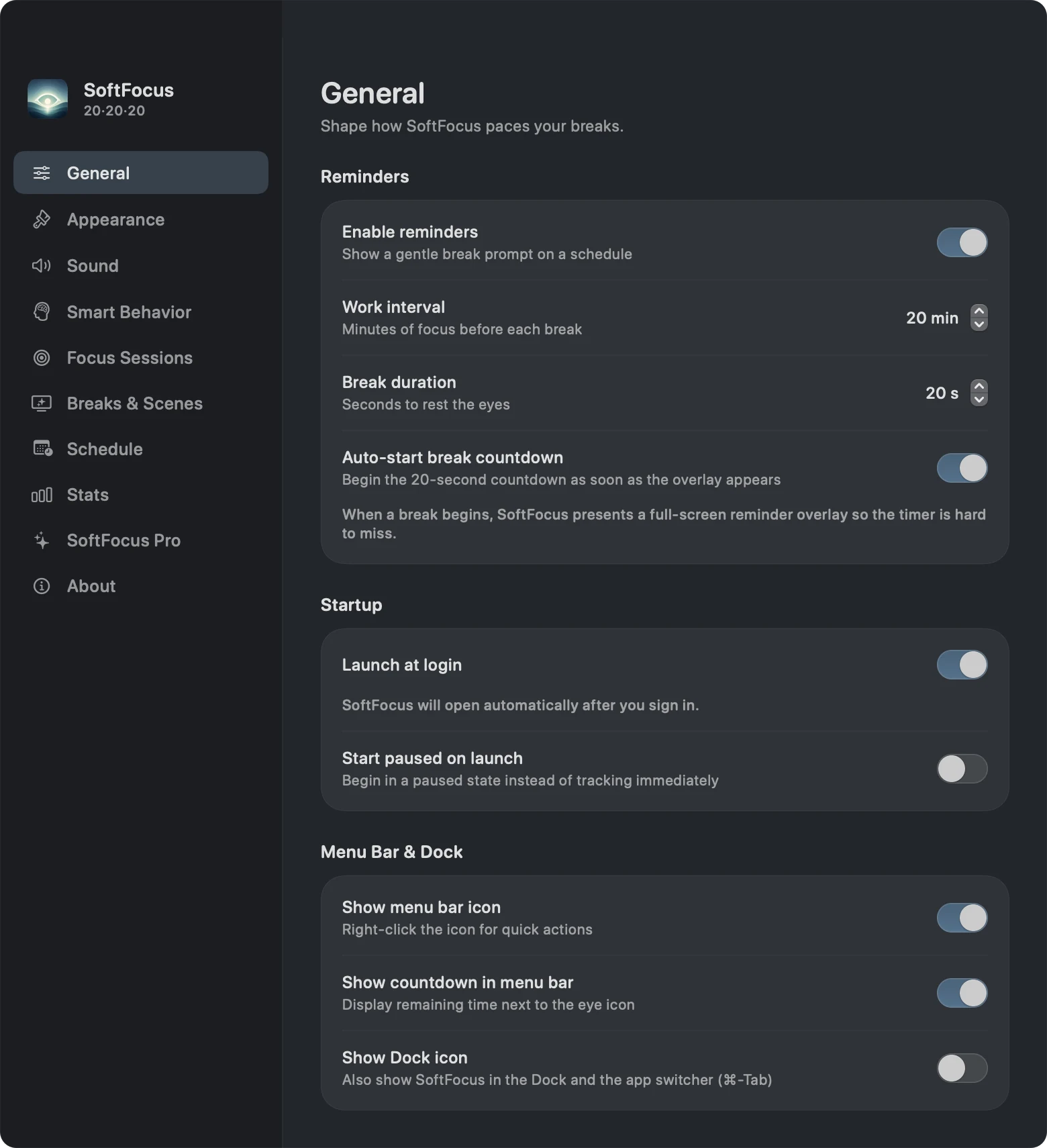
- Open Settings → General. Keep Enable reminders on. The standard routine is a 20-minute work interval and a 20-second break.
- Choose how the countdown begins. With Auto-start break countdown on, the countdown begins as soon as the full-screen prompt appears. Turn it off if you prefer to start the break yourself.
- Enable Launch at login if you want automatic startup. Leave Start paused on launch off if you want the timer to begin when the app opens.
- Try Take Break Now from the menu bar. Use the prompt as your cue to look at your chosen distant object.
After a completed break, Blink starts the next work interval. You do not need to restart a separate timer each time. For more configuration help, see the Blink setup guide for Mac.
How Blink fits into a working day#
A menu bar timer with quick controls#
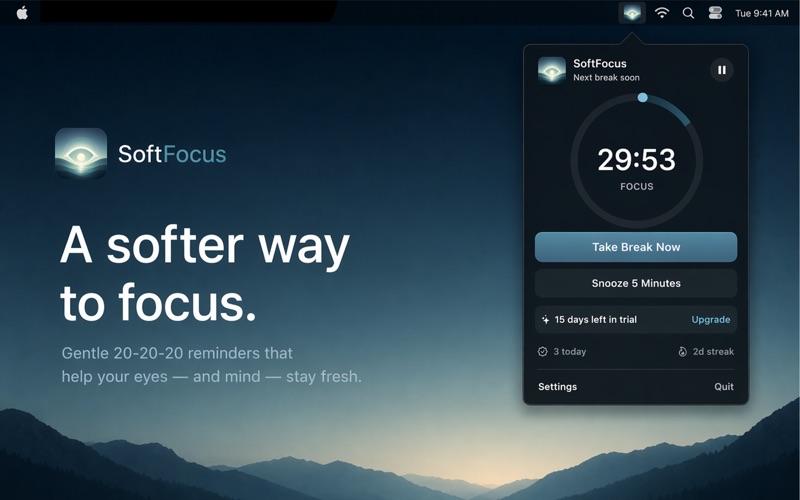
Click the eye icon to see your progress, pause or resume the timer, take a break immediately, or snooze. You can also enable a countdown beside the menu bar icon and right-click for quick actions.
That is useful when a natural stopping point arrives before the timer does. Finish a draft, start a break, and then move on to the next task. During a conversation, snooze lets you postpone the prompt instead of abandoning reminders for the rest of the day.
Full-screen breaks across your displays#
Blink displays a full-screen reminder when a break is due. With multiple monitors connected, the interactive break card appears on the display under your pointer and matching backdrops cover the others.
The purpose is to make the cue visible even when your work spans a MacBook and an external monitor. Once the break starts, look away from all of those screens; the countdown can run without your attention.
Pauses when you step away or join a call#
The basic app can pause when your Mac is idle and start a fresh cycle after sleep or lock. Those controls help the timer fit time spent away from your desk.
Pro adds meeting and full-screen pauses. Meeting detection checks whether the microphone is in use; it does not listen to your audio or read your calendar. Because this is a system signal, it can also react to microphone use outside a meeting. Manual pause and snooze remain useful when automatic detection does not match what you are doing.
Scenes, sounds, and guided breaks#
Pro includes Ocean, Aurora, Rain, Forest, Fog, and Sunset break scenes, plus optional break tones and completion sounds. Guided choices include 20-20-20, Blink rest, Near · Far, Figure 8, and Palming, or you can keep a plain countdown.
These are optional ways to personalize the break experience. The app does not establish that guided exercises treat an eye condition. If your goal is specifically the 20-20-20 habit, choose that guide or use the plain countdown and look away.
Focus sessions, schedules, and local progress#
With Pro, Focus Sessions group work-and-break blocks into a session with a visible goal. Schedule Profiles switch your timing, accent, and scene by time of day and selected weekdays. These suit people whose mornings and afternoons follow different routines; custom intervals should be understood as a different rhythm from the standard 20-20-20 rule.
The Stats view shows completed breaks, streaks, and a seven-day chart. Use it to notice whether you are taking breaks consistently. Those counts describe app activity, not a measurement of eye health.
What is free, and what needs Blink Pro?#
Blink includes a 15-day Pro trial from first launch. After the trial, the basic reminder remains available without buying Pro. Pro is an optional one-time purchase with no subscription; check the purchase screen for your current regional price.
| Feature | Free basic app | Pro or active trial |
|---|---|---|
| Standard 20-minute / 20-second reminders | Included | Included |
| Pause, resume, snooze, and manual breaks | Included | Included |
| Full-screen reminders across displays | Included | Included |
| Idle pause, sleep/lock reset, and launch at login | Included | Included |
| Local break counts and seven-day stats | Included | Included |
| Custom work intervals and break lengths | — | Included |
| Meeting and full-screen app pauses | — | Included |
| Ambient scenes, guided exercises, and sounds | — | Included |
| Focus sessions and schedule profiles | — | Included |
| Strict mode, adaptive snoozes, and extra accent colors | — | Included |
Your break history and settings stay on your Mac, and you do not need a Blink account. Purchases are handled by Apple and verified through RevenueCat. See our privacy policy for the distinction between local app activity and purchase processing.
Common questions about the 20-20-20 rule on Mac#
Do I need to pay to get a reminder every 20 minutes?#
No. Blink's basic 20-minute work interval and 20-second break remain available after the Pro trial. You need Pro to customize those durations or use the advanced features listed above.
Can I follow the rule in a small room?#
Look through a window or toward a distant object where possible. If the room does not offer a 20-foot view, use the break as an opportunity to step somewhere with a longer sightline. Switching to another nearby screen misses the point of the distance break.
Should I watch the break animation?#
For a 20-20-20 break, look away into the distance. The animation announces the break; you do not need to watch the timer finish. Pro's optional completion sound can provide an audible cue.
Can I use a different interval?#
Yes, with Pro. General settings support work intervals from 1 to 90 minutes and break durations from 5 to 120 seconds in five-second steps. The standard rule remains 20 minutes, 20 feet, and at least 20 seconds.
What if I regularly miss breaks during calls?#
Try Pro's meeting pause or pause manually before the call. Resume when you are ready. The Mac break reminder guide explains how to choose controls that fit meetings, multiple displays, and focused work.
Start with the basic routine#
Pick a distant object, keep the 20-minute/20-second settings, and try a manual break so you know what the prompt looks like. You can add scenes, schedules, or focus sessions once the basic routine fits your day.